
New Batches
Upcoming Batches Why Choose Onclick Digital Marketing Academy Onclick Digital Marketing Is Best Digital Marketing Training Institute In Hyderabad With 100% Placement Assistance 9+ Years
If you have a WordPress website, you do not always need to know HTML, CSS, PHP, or JavaScript to make it look better. WordPress includes several visual tools that allow beginners to change colours, fonts, images, menus, layouts, headers, footers, and other design elements without writing code.
The exact customization options depend on the theme you are using. Classic and hybrid themes may provide the WordPress Customizer, while modern block themes generally use the Site Editor. Page builders can provide another layer of visual design control.
This means you can change your WordPress theme without coding for many everyday design tasks. Whether you run a blog, business website, portfolio, training institute, or online store, you can make meaningful improvements without becoming a developer.
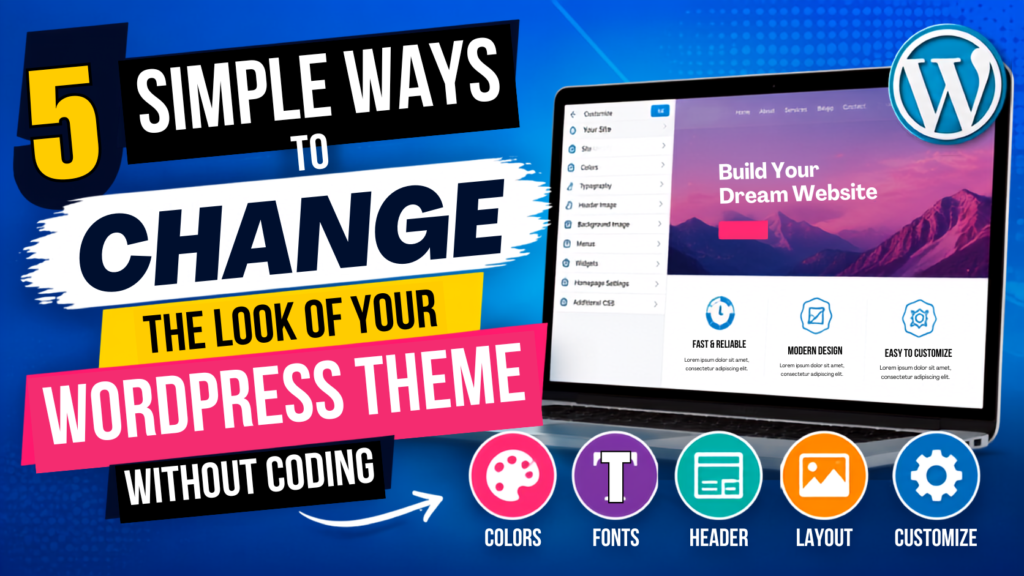
Here are five simple ways to customize the appearance of your WordPress website without coding.
Yes. WordPress allows beginners to make many visual changes without directly editing theme files.
Depending on your theme and installed plugins, you may be able to change:
However, “without coding” does not mean that every possible modification can be made visually. Advanced functionality or highly specific design changes may require CSS, a child theme, custom development, or professional assistance.
If you are using a classic or hybrid WordPress theme, the Customizer is one of the easiest ways to modify your website’s appearance.
You can usually access it from:
WordPress Dashboard → Appearance → Customize
The available settings vary from one theme to another, so you may see different options depending on your theme.
The Site Identity section commonly allows you to update:
Replacing a default theme logo with your own brand logo can immediately make a website feel more professional.
Many themes provide controls for changing colours such as:
For example, a training institute website might use a consistent combination of blue, white, and a contrasting accent colour throughout its pages.
Some themes allow you to upload a background image or select an existing image from your Media Library.
A suitable background can change the mood of a website, but avoid using images that make text difficult to read.
Depending on the theme, you can create and manage navigation menus through the Customizer.
A simple business website might use:
Home | About | Services | Blog | Contact
Keep your primary navigation focused on the pages visitors actually need.
Classic themes may provide widget areas such as sidebars and footer sections. You can add or remove supported widgets according to the theme’s available areas.
You can often choose whether your homepage displays:
This is particularly useful for businesses that want a dedicated homepage instead of displaying recent posts immediately.
One important point: not every WordPress website has Appearance → Customize. Modern block themes generally use the Site Editor instead.
The WordPress Site Editor is the modern visual editing system used by block themes.
If you are using a block theme, you will generally work through:
WordPress Dashboard → Appearance → Editor
Instead of limiting visual editing to individual content areas, the Site Editor can allow you to work with broader parts of your website.
Depending on your theme, you may be able to edit:
The Styles interface can help you control the overall visual language of a website.
You may be able to adjust:
This is useful because you can establish a consistent design instead of manually changing every individual section.
The basic difference is easy to remember:
Classic or Hybrid Theme → Customizer
Block Theme → Site Editor
If you cannot find the Customizer, do not immediately assume something is broken. Your active theme may simply be a block theme designed around the Site Editor.
You do not necessarily need to change your entire theme to give your website a new appearance.
Small branding changes can have a surprisingly large visual impact.
Start with a small colour system.
For example:
Using too many unrelated colours can make a website look inconsistent.
Instead, select a small palette and reuse it across buttons, headings, links, cards, and other visual elements.
Typography affects how professional and readable a website feels.
Look at:
Use fonts that are easy to read, especially for long paragraphs.
You can make headings more prominent while keeping body text comfortable to read. A consistent typographic hierarchy also helps visitors scan your content.
Your logo is one of the most recognizable elements of your website.
If your theme currently uses a default logo or plain text, replacing it with your actual brand logo can make the site feel much more personalized.
Make sure the logo is appropriately sized and works well on both desktop and mobile screens.
Theme demo images are designed to demonstrate a theme, not necessarily to represent your business.
Replace them with relevant images such as:
Also optimize images before uploading them. Extremely large image files can unnecessarily affect website performance.
The header and footer appear across many pages, so improving them can make the entire website feel more polished.
Depending on your theme or Site Editor, you may be able to change:
For example, a training website might include a prominent Enroll Now button in its header.
Avoid putting too many elements into the header. Visitors should immediately understand where to navigate.
A useful footer can contain:
Instead of treating the footer as an afterthought, use it to help visitors find useful information.
A clear navigation menu makes a website easier to use.
For example:
Home | About | Courses | Services | Blog | Contact
You can use dropdown menus when necessary, but avoid creating a menu containing every page on your website.
Depending on your theme, you may be able to modify:
Block themes provide particularly broad control because blocks can be used across areas such as content, navigation, headers, and footers.
If your theme’s built-in customization options are not enough, a visual page builder can provide additional control.Popular WordPress page builders include:
Page builders typically allow users to visually create sections rather than manually writing code.You can use them to:
For example, you could create a course landing page with a hero section, course cards, testimonials, FAQs, and an enrollment CTA using a visual editor.
It is important to understand the difference.Theme customization generally controls the broader appearance and structure of the website.Page builders are often used to design individual pages and sections with more detailed visual control.A page builder does not necessarily replace your WordPress theme. Instead, it can work alongside the theme to provide additional design flexibility.
Making changes is easy. Making the right changes requires some design discipline.
Do not use a different colour for every section. Choose a small group of complementary colours and use them consistently.
Too many fonts can make a website look disorganized. Keep typography simple and establish a clear hierarchy between headings and body text.
Do not fill every available space with text, images, or buttons. Good spacing helps visitors understand the relationship between different sections.
Avoid blurry, stretched, irrelevant, or poorly cropped images.
Instead of vague button labels, use action-oriented text such as:
Visitors should not have to search through a complicated menu to find important information.
A website that looks good on desktop but is difficult to use on a phone still has a design problem.
Always check your website at different screen sizes before publishing changes.
A large collection of unrelated colours can make a website look unprofessional. Establish a limited colour system instead.
Multiple fonts can make your website harder to read. Keep your typography consistent.
Large image files can negatively affect loading performance. Resize and compress images before uploading them whenever possible.
The header should help visitors navigate the website, not contain every available feature.
Always check how your changes appear on smaller screens.
Plugins can add useful functionality, but installing unnecessary plugins increases website complexity and can create maintenance or compatibility concerns.
Beginners should avoid casually editing theme files.
Direct modifications can also be overwritten when a theme is updated. If deeper theme-file customization is required, a suitable child-theme approach may be more appropriate.
There is a major difference between customizing your current theme and installing a completely different theme.
|
Customizing Existing Theme |
Changing the Theme |
|
Keeps the existing design foundation |
Provides a completely different design |
|
Usually involves less disruption |
Can affect layouts and templates |
|
Faster for smaller changes |
Better for major visual transformations |
|
Existing content structure may remain familiar |
Some elements may need reconfiguration |
|
Good for gradual improvements |
Useful when the current theme is unsuitable |
If your existing theme is fundamentally suitable, customization may be the simpler option.
If you need a completely different structure or feature set, changing the theme may make more sense.
Before changing themes, test the new theme carefully and review how your existing content, menus, widgets, templates, and other elements behave.
If you are new to WordPress customization, follow a simple process.
Create a backup before making significant changes.
Determine whether you are using a:
For a classic or hybrid theme:
Appearance → Customize
For a block theme:
Appearance → Editor
Choose your:
Where available, update typography, colours, spacing, and other site-wide settings.
Keep both areas clean, useful, and consistent.
Organize your important pages logically.
Preview your website at different screen sizes.
Check:
Review your website once more before making major changes live.
Absolutely. Beginners can make a surprising number of visual changes without writing code.
The amount of control you have depends on your:
You do not need to learn programming simply to change your logo, colours, fonts, images, menus, or many other common design elements.
However, if you eventually want complete control over a website, learning basic HTML and CSS can be valuable. It gives you another level of flexibility when visual controls are not enough.
The best approach is to start with the no-code tools available in your current setup and learn more only when you actually need it.
Yes. Many WordPress themes provide visual customization options for colours, typography, logos, menus, layouts, and other elements. Block themes can also provide extensive editing through the Site Editor. The exact options depend on the active theme.
Start by identifying your theme type. Classic and hybrid themes may use Appearance → Customize, while block themes generally use Appearance → Editor. You can then modify available colours, fonts, layouts, headers, footers, navigation, and other design settings.
For themes that support it, the Customizer is generally available under Appearance → Customize. However, you may not see this option when using a modern block theme because block themes are designed to use the Site Editor.
Your active theme may be a block theme. Block themes generally use the WordPress Site Editor instead of relying on the traditional Customizer. Check Appearance → Editor to see the editing options provided by your theme.
Yes, if your theme or Site Editor provides typography controls. You may be able to change font families, sizes, weights, and other typography settings without writing CSS.
Yes. Many themes provide colour controls through their Customizer or Site Editor. You can often change background, text, accent, link, and other colours depending on the theme.

Upcoming Batches Why Choose Onclick Digital Marketing Academy Onclick Digital Marketing Is Best Digital Marketing Training Institute In Hyderabad With 100% Placement Assistance 9+ Years
Privacy Policy Welcome to Onclick Digital Marketing Academy. We value your privacy and are committed to protecting the personal information you share with us. This
Terms & Conditions Welcome to Onclick Digital Marketing Academy. By accessing our website, submitting an enquiry, enrolling in any of our training programs, or using
Loading… ISO Certification We Are Providing ISO Certification For Our Students. 15000+ Students We bring the right people together to challenge established thinking Accredited &
Loading… ISO Certification We Are Providing ISO Certification For Our Students. 15000+ Students We bring the right people together to challenge established thinking Accredited &
Master Digital Marketing Learn Industry-Ready Skills. Get Certified. Launch Your Career with Practical Training. Expert Trainers Learn from Industry Experts 100% Placement Assistance Explore Courses
Whatsapp Us Call : 9346775340 Get Brochure 2026 Curriculum AI Powered Become Job Ready with AI Powered Digital Marketing Course Join Hyderabad’s most trusted digital
Whatsapp Us Call : 9985023500 Get Brochure 🪔 Diwali Special Offer! Get 20% OFF on Our Digital Marketing Course. Enroll Now & Boost Your Career!
Whatsapp Us Call : 9985023500 Enquiry Now #1 Digital Marketing Institute in Hyderabad Launch Your Digital Marketing Career with Performance Marketing, Real-Time Projects & 100%
Whatsapp Us Call : 9985023500 #1 Digital Marketing Institute in Hyderabad Launch Your Digital Career With Real-Time Projects & 100% Placement Assistance Master 15+ in-demand
🪔 Diwali Special Offer! Get 20% OFF on Our Digital Marketing Course. Enroll Now & Boost Your Career! ✨ 🪔 Diwali Special Offer! Get 20%